Laptop Setup Instructions for New Hires
Logging into your new device
- Plug power cord into the laptop and turn laptop on.
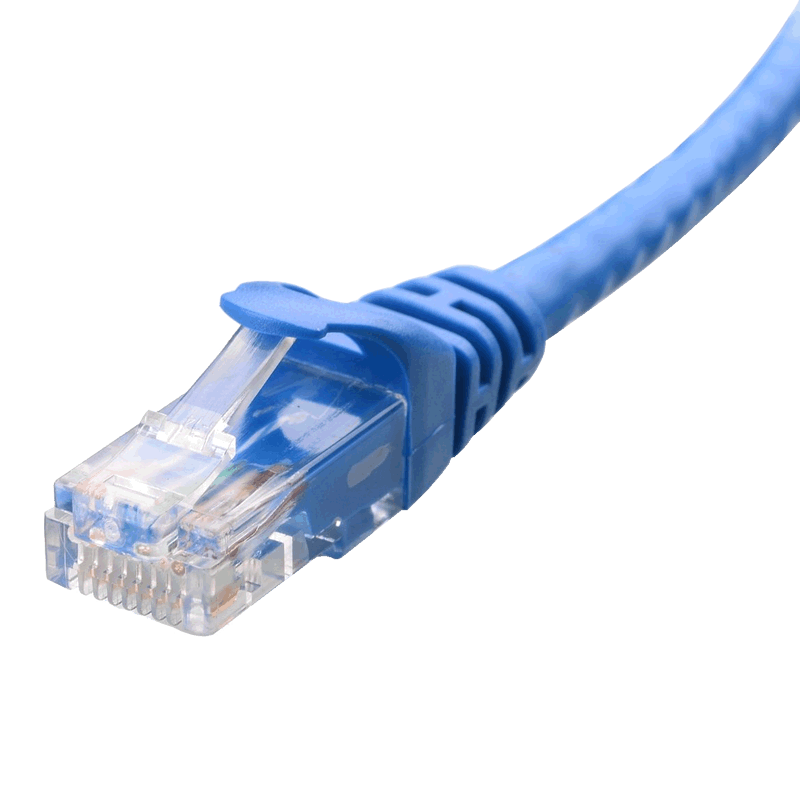
- Connect it to an ETHERNET CABLE with an active internet connection. You can't sign in unless you are connected to the internet. If you are at home, plug the ethernet cable into your router and the other end into your laptop. If you are at an office with no ethernet then use Wi-Fi.
- Have your CRLA email and password ready to login.
- Log in, update your password, and set up Multi-factor Authentication (MFA). MFA is an extra step to secure your device; you will have to download the Microsoft Authenticator app from the apple store or android store on to your personal phone.
- It will ask you to set up a PIN to log into the laptop, it's just another secure and quicker way to log in, go ahead and select a 6-digit PIN to use.
- Allow enough time for your laptop to finish setting up, install apps and run updates (Approximately up to an hour). This allows the computer to download and install apps, connect to our CRLA systems, and run important updates. You can immediately start using your computer and browser to get online. The desktop apps will still continue to install in the background.
- Once logged in, go to the Windows start menu, type in "Company Portal' and sign into the app. Then click the Settings gear icon in the portal on the bottom left-hand side menu. Last, click "Sync". Wait until the Sync fully finishes before proceeding.
- While in Company Portal you can install your office copier, and any other app you need. Be sure to Install one App at a time.
- Install any other apps you may need from the Apps section, if you need any additional assistance or if you do not see an app you need, please contact helpdesk@crla.org.
Canva Presentation - Must Watch
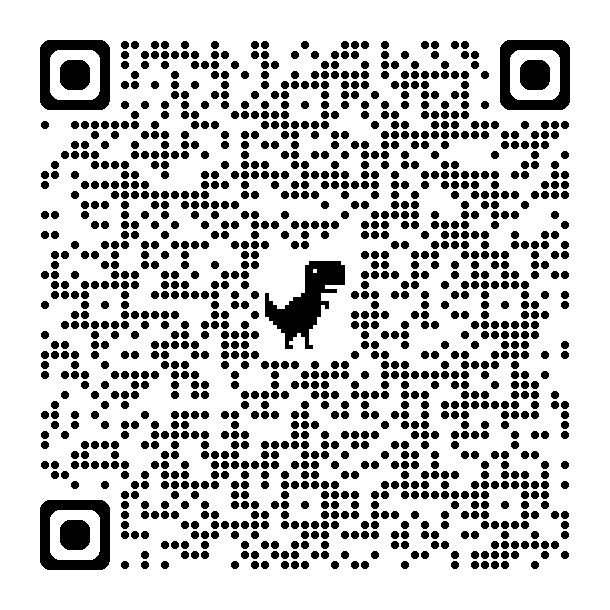
Scan the QR Code with your phone to view the presentation or click here
How do I get help?
How do I get help?
For immediate assistance call:
IT Help Desk (559) 574-8324